

Turn on two-step login (2FA)
Two-step login is what RotarApp calls Two-factor authentication. When you sign in, you type your password and then a 6-digit code from an app on your phone. A stolen password is then not enough on its own. It is your choice. RotarApp reminds officers to turn it on, because their accounts can reach more of the club.
Who can do this: every member, for their own login. To reset someone else’s two-step login, you need Members: Manage.
How to turn on two-step login
Section titled “How to turn on two-step login”- On your phone, install an authenticator app: an app that shows a new 6-digit code every few seconds. Google Authenticator and Microsoft Authenticator are two examples.
- In RotarApp, tap your initials or photo at the top right, then My account.
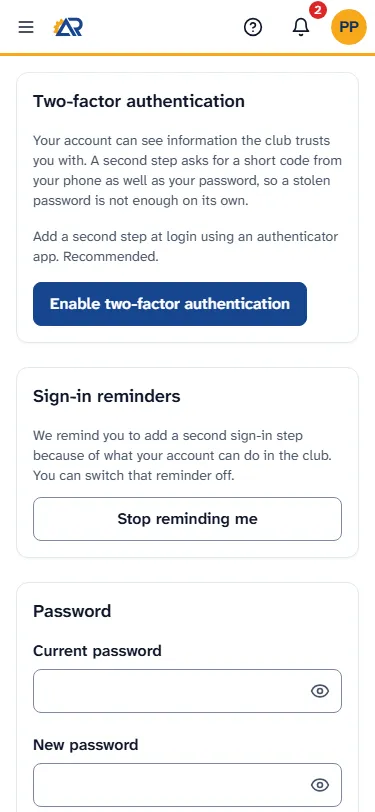
- Tap the Security tab. The first card is Two-factor authentication.
- Tap Enable two-factor authentication.
- In your authenticator app, add a new account and scan the square code (QR code) on the screen. If you cannot scan it, type the secret shown after Or enter this secret manually: into the app.
- Type the 6-digit code the app shows. RotarApp checks it as soon as you type the sixth digit.
- A message says Two-factor authentication is on. Your other devices are now signed out. Sign in again on those devices.
How to sign in with a code
Section titled “How to sign in with a code”- Sign in with your email and password, as usual.
- The page Two-factor authentication asks: “Enter the 6-digit code from your authenticator app.”
- Open your authenticator app and type the current code. You do not need to tap anything else: RotarApp signs you in when you type the sixth digit.
If you change your mind, tap Sign out on that page.
How to turn off two-step login
Section titled “How to turn off two-step login”- Go to My account, then the Security tab.
- In the card Two-factor authentication, which says “Two-factor authentication is on.”, tap Disable.
- RotarApp asks Turn off two-factor authentication? and warns that without a second step, anyone who learns your password can sign in as you. Tap Disable 2FA, or Cancel to keep it on.
- If you see “Please sign in again with your code before disabling 2FA”, tap Sign in again, sign in with your password and code, and repeat from step 1.
What to do if you lose your phone
Section titled “What to do if you lose your phone”You cannot make a code without your phone. If you are still signed in with your code on another device, such as a computer or a tablet, you can turn two-step login off yourself: see “How to turn off two-step login” above. If you are not signed in anywhere, an officer must reset your two-step login. The officer needs Members: Manage in your club.
If you are the one who lost the phone: ask an officer to reset it. When it is done, sign in with your password only. Then turn two-step login on again with your new phone (see the first section).
If you are the officer:
- Open Members and tap the member’s name to open the member card.
- Tap the ⋯ button (More actions for the member’s name).
- Tap Reset two-factor. The item shows only for a member who has a login.
- RotarApp asks you to confirm, with the title Reset two-factor for …? (the member’s name shows in place of the dots), and says: “They’ll sign in with their password and can set it up again.” Tap Reset two-factor.
- A message says “Two-factor reset — the member can re-enroll after signing in”. The reset signs the member out on all their devices, and RotarApp sends them an email to tell them that their two-factor was removed.
If you lost your phone but you are still signed in on a computer or a tablet, you can also tap Sign out on all other devices in My account, Security, Devices.
Reminders
Section titled “Reminders”If you hold a board seat or have Manage rights in the club, and you do not have two-step login, RotarApp shows a bar: Add a second step when you sign in.
- Tap Set it up to go to the Security tab.
- Tap the X at the right of the bar to hide it until your next sign-in.
- To stop the reminders, open the Security tab and, in the card Sign-in reminders, tap Stop reminding me. RotarApp asks first. Tap Keep reminders to keep them. To get them back later, tap Turn reminders back on.
Common problems
Section titled “Common problems”- “Invalid code — please try again.” (when you sign in) or “Invalid code — try again” (when you turn two-step login on). The code changes every few seconds. Type the code that shows now. Check that your phone’s date and time are set automatically.
- “We could not load your two-factor setup.” Tap Try again. If it does not help, tap Sign out and sign in again.
- I cannot see Reset two-factor. You need Members: Manage. The item is also missing for a member who has no login yet.