

Answer a form from your club
Your club can send you a form to fill in, for example to ask who can help at an event. You open it from a personal link. You do not need to sign in.
Who can do this: every person the club sent the form to. Writing and sending forms is for officers with Communications: Edit.
How to open your form
Section titled “How to open your form”The link reaches you in one of these ways. The club chooses which.
- Your email. The email has a button Open form.
- The bell at the top right of the app. Tap the bell, then tap the notice with the name of the form. This works if you have a login and the club sent the form to the bell.
- A WhatsApp message. An officer sends it from their own WhatsApp. Tap the link in the message.
- A link from an officer. The club can also copy your link and send it to you in another way, for example in a chat. Open it the same way.
The link is yours alone. Do not share it: whoever has it can answer in your name. The form is in your club’s language.
How to answer
Section titled “How to answer”- Open the link. The page shows your club’s name, the title of the form and, if the club set one, Open until and a date.
- Read the text above the questions. If the form is anonymous, a grey box says: “Your answers are anonymous: the club sees the answers, not who sent them.” The club still sees that you answered, but it cannot tell which answer is yours.
- Answer the questions. A question marked (required) needs an answer. Some questions only appear after you answer an earlier one.
- Tap Send answers.
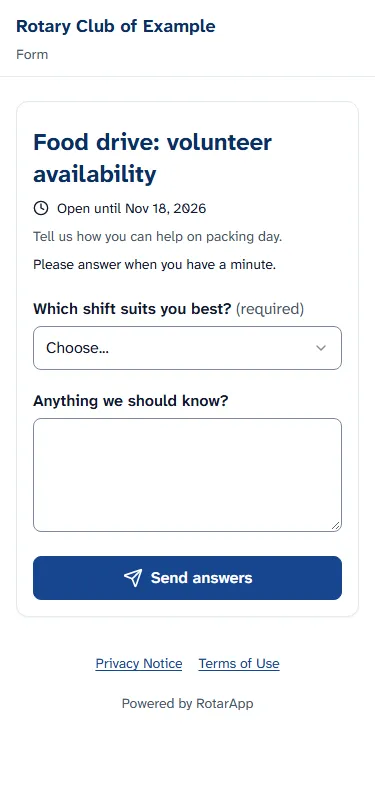
Nothing is saved until you tap Send answers. If you close the page before that, you start again from the same link.
What you see after you send
Section titled “What you see after you send”The page says Thank you, your answers were received. with the name of the form. If the form is not anonymous, a card Your answers shows what you sent. An anonymous form shows no answers.
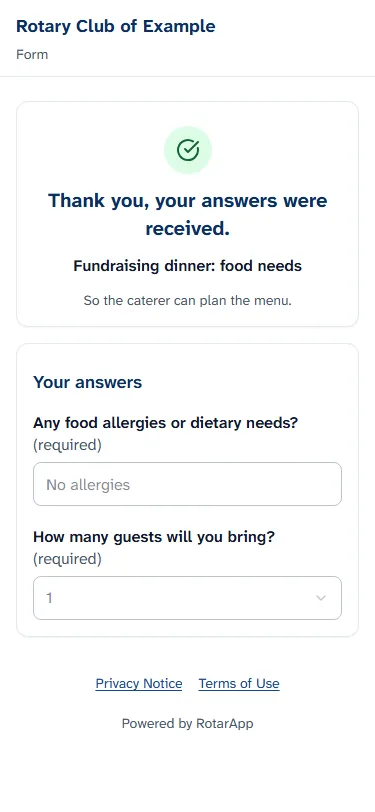
You cannot change your answers afterwards. If you open the same link again, you see this page again. A form is answered once per link. To correct a mistake, tell the club.
What the club sees
Section titled “What the club sees”For a form that is not anonymous, the club sees your answers with your name, and whether you opened and answered the form. For an anonymous form, the club sees who answered, but never what each person answered. On a form that is not anonymous, the club can attach a rule to an answer so that the answer adds a tag to your member record. Tags are short labels the club uses to group its members. The privacy notice says more.
Common problems
Section titled “Common problems”- “This link has expired.” The link has a limit in time. Ask the club to send you the form again.
- “This form is closed.” The club is no longer taking answers. Ask the club if it can open the form again.
- “This link is not valid.” The address may be cut off or wrong. Open the link again from the email, the bell or the WhatsApp message. If it still fails, ask the club for a new link.
- “Too many attempts.” The link was opened too often in a short time. Wait 10 minutes and open it again.
- A message under a question, and “Please fix the errors before submitting”. Answer the question that is marked, then tap Send answers again.
- “Please answer all required questions”. A question marked (required) is still empty. Answer it, then tap Send answers again.
- “Too many attempts. Please wait 10 minutes and send again.” Your answers stay on the page. Wait 10 minutes and tap Send answers.
- “Could not send your answers. Please try again.” Check your connection and tap Send answers again.
- “Something went wrong.” with a button Try again. The form did not load. Check your connection and tap Try again.
- A question says “File uploads are not available on this form.” You cannot send a file in this form. Send the file to the club in another way.
- I cannot find the email. Look in your spam folder. Then check the bell. If you find nothing, ask the club to send the form again.