

Find your projects and tasks
Your club runs its service work as projects. Each project has tasks: things to do, with a person and a date. My Tasks is your own list: the tasks people gave you, and the personal tasks you add yourself.
Who can do this: every member can see the projects of the club and work on their own tasks. Adding or changing projects needs Projects & Events: Edit.
How to find a project
Section titled “How to find a project”- Open Projects in the menu. On a phone, tap the menu button at the top left first.
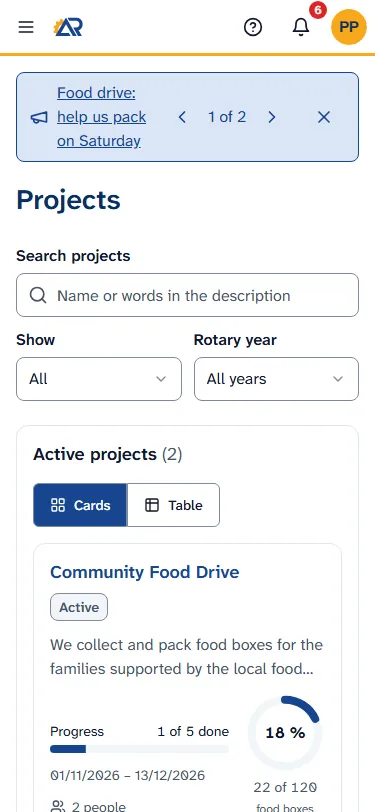
- The card Active projects lists the projects that are going on. Under it, Completed projects lists the finished ones.
- To look for one, type in Search projects (the name, or words in the description). Use Show to choose All, Active or Completed, and Rotary year to choose a year. Clear filters brings everything back.
- Tap Cards or Table to change how the list looks.
- Each project shows its name, its state, a bar with “done of total” tasks, its dates, the number of people in its team, and, if it has a goal, a ring with the goal.
- Tap the name of the project to open it.
You see the projects the club shares with all its members. A project that the club keeps private shows only to the people who take part in it and to officers with Projects & Events: Edit.
How to read a project
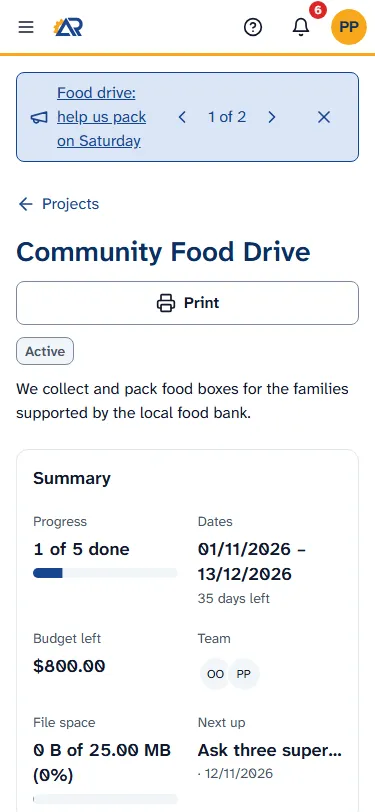
Section titled “How to read a project”The project page opens with its name, its state, its description and, above the tabs, a Summary: Progress, Dates, Budget left, Team, File space, Next up and the Notes of the project. If the project has a goal, the card Goal shows how far it is, with its Milestones. The tabs under it are:
- Tasks: the tasks, in four views (see below).
- Team: the people in the project, each marked Project leader or Team member, with their open tasks and hours.
- Money: the project’s budget, money in, partners and spends. Lines that the treasurer has not reviewed yet say Waiting for treasurer. If you are in the project’s team, you can add lines yourself (see “How to add money in or record a spend” below).
- Report: a summary of the project that you can look at, and make into a PDF with Download PDF.
- Tags: only for people who manage tags.
The button Print under the name does not print. It opens a window called Project report, with the words “Choose what goes into the PDF.”. Choose Tasks from and Tasks until (dates), the Sections, the Title and the Page size (A4 or Letter), then tap Download PDF. To go back to the list, tap Projects at the top.
How to add to a project goal
Section titled “How to add to a project goal”Some projects have a goal that counts things, for example food boxes. If you are in the project’s team, a form sits under the Goal card.
- Type a number in How many?. If you want, write a short Note (optional). Do not type private people’s names.
- Tap Add. A message says “Added” and the goal moves.
- If you made a mistake, tap Latest updates, then Undo on your own latest entry. A minus number also corrects a mistake.
If you are not in the team, you see the goal but not the form.
How to add money in or record a spend
Section titled “How to add money in or record a spend”If you are in a project’s team, or you are an officer with Projects & Events: Edit, the tab Money has two buttons: Add money in and Record a spend. They are not there when the club’s Rotary year is closed.
- To record money that came in, tap Add money in. Say Where did the money come from?, write What is it?, and give the Amount. The Date and the other boxes are optional.
- To record something that was paid, tap Record a spend. Write What was it for?, the Amount and Whose money?. You can also pick a Task, add a Receipt (a photo or a PDF) and Notes.
- Tap Send to treasurer.
The line shows in the list with Waiting for treasurer, and the officers who handle club money get a notice. The treasurer checks it and posts it to the club books. If the treasurer sends it back, the line says Sent back and the reason, and you can fix it and send it again. You can also record a spend from the panel of a task, in the same way: see below.
How to look at the tasks of a project
Section titled “How to look at the tasks of a project”- Open the tab Tasks.
- Choose the view with Board, List, Calendar or Timeline. The board has one column for each step of the work. On a phone the four buttons show only a small picture. In order, they are Board, List, Calendar and Timeline. A phone opens the tasks as a List.
- To narrow the tasks, use Search tasks, Person (Anyone, Me, Nobody), and the boxes Hide done, Hide cancelled and Overdue only. On a phone these are under Filters. Clear filters shows everything again.
- Tap a task to open it. A panel opens at the side.
How to work on a task that is yours
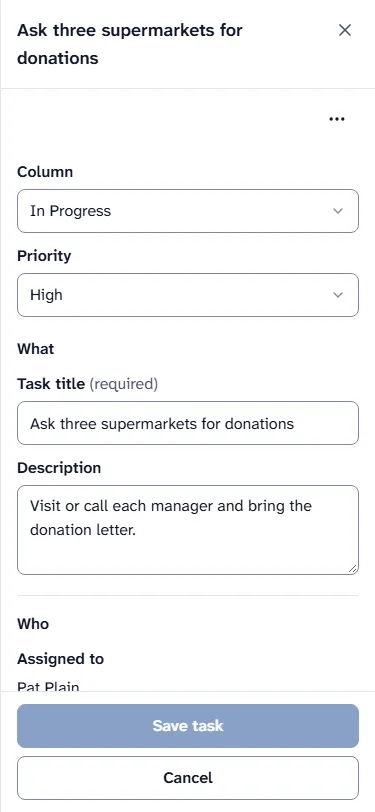
Section titled “How to work on a task that is yours”In the panel, a task that is assigned to you lets you change what is in it, as long as the club’s Rotary year is open:
- Change the Column (the step it is in), the Priority, the Task title, the Description, the Start date, the Due date, the box Mark as milestone (important project goal), the Place or the Estimated cost.
- Tap Save task. A message says “Task saved”. The panel stays open: tap Cancel or the X when you are done.
- In Checklist, tick the lines you did. In Files and links, add a file or a link. These save at once.
- In Comments, write a comment for the team.
- In Money, the panel shows the Actual cost of the task. If you are in the project’s team, tap Add spend to record what the task cost. It works as Record a spend above and goes to the treasurer.
On the board you can also drag your own task to another column.
The three dots at the top of your own task open Task actions, with Cancel task. Use it for a task that will not be done. The task stays in the project, marked Cancelled, and the panel shows Restore task to bring it back.
For a task that is not yours, the panel shows the same things to read, and you can still write a comment. If you are in the project’s team, you can also add files and links, and add a spend in Money. If the Rotary year is closed, the panel says “This Rotary year is closed. Its projects can be read but not changed.” and nothing can be changed. Adding a task and changing who it is assigned to are for the project’s leaders and for officers with Projects & Events: Edit.
How to see your tasks in My Tasks
Section titled “How to see your tasks in My Tasks”- Open My Tasks in the menu.
- The tabs All, Club and Personal choose which tasks you see. Search title and notes looks in the titles and notes. The box under it chooses one project or meeting, or Personal.
- Your open tasks are grouped by when they are due: Overdue, Today, Next 7 days, Later and No date. Each row shows the title, a label that says where the task comes from (the project, the meeting, Club task or Personal) and the due date.
- Tap a row to open the task.
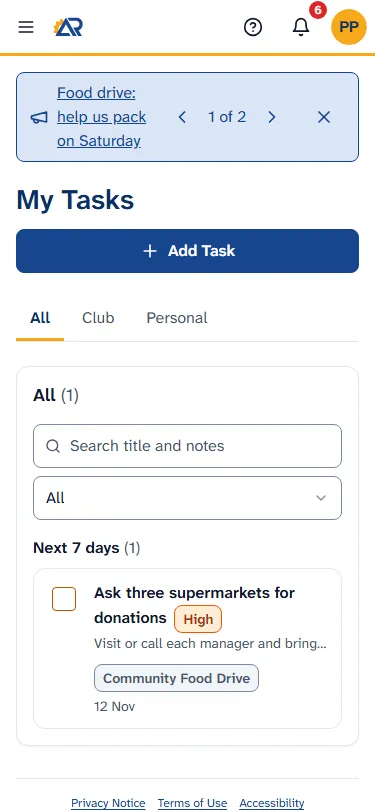
To tick a task as done, tap the empty box at the left of its row. A message says “Marked as done”, with the button Undo. Tap Undo to put it back. Done tasks are hidden: tap Show done and the number to see them, and Hide done to hide them again.
If you tick a project task that still has open checklist lines, RotarApp asks what to do with the lines: Leave them open or Mark them done too.
A task that someone gives you also reaches you as a notice in the bell. Tap the notice to open the task. If the task is not on your list, the page says “This task is not on your list.”
How to add a personal task
Section titled “How to add a personal task”A personal task is only for you. Nobody else sees it.
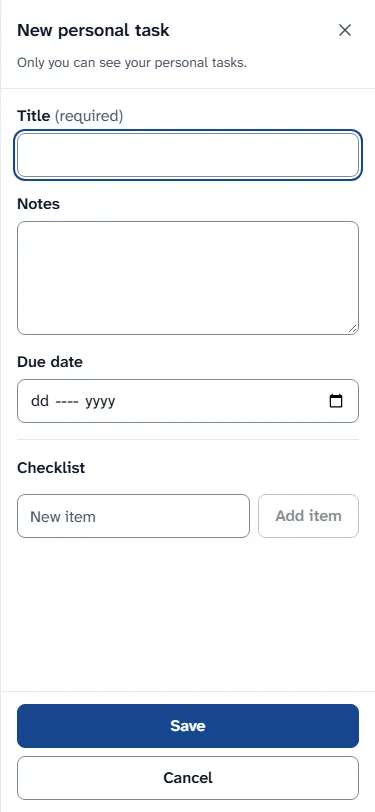
- In My Tasks, tap Add Task. A panel called New personal task opens.
- Type the Title. It is required.
- If you want, add Notes, a Due date, and a Checklist: type a line in New item and tap Add item. A checklist can have 50 lines.
- Tap Save. A message says “Personal task added”.
To change a personal task, tap its row, change it and tap Save. If you close the panel with changes that are not saved, RotarApp asks Leave without saving? To delete it, open it and tap Delete. RotarApp asks you to confirm, and says it cannot be undone. Tap Delete personal task. If a personal task has a checklist, the row has a link, such as Open checklist (0/1). Tap it to tick the lines without opening the task.
If you hold a seat on the board
Section titled “If you hold a seat on the board”If you hold a seat (a position) on the board, My Tasks in the menu has two pages: Tasks and Duties. Duties is a table of the duties of your seat, with Duty and When (for example Every meeting, Every month or Once a Rotary year). Under the table is a box with the words “I acknowledge that I have read the” and the name of your seat, then “duties.” Tick it and RotarApp asks you to confirm, with a question such as Acknowledge the Secretary duties? and the words “You confirm that you have read them.”. Nothing is saved until you tap Acknowledge. Only the person who holds the seat can tick it. The page then shows who confirmed and when. You cannot untick it, and it clears by itself if the duties change. A member who holds no seat who opens this page sees “You do not have access to this page.”
Common problems
Section titled “Common problems”- I do not see a project. It may be private, or it may be in another Rotary year: set Show to All, and, if the list has Rotary year, set it to All years.
- I cannot change a task. It is not assigned to you, or the Rotary year is closed. Ask the project leader.
- My Tasks is empty. Nobody has given you a task yet. Tasks that people give you show there. You can add a personal task.
- I see “Could not load your tasks.” Check your connection and tap Try again.
- I ticked a task by mistake. Tap Undo in the message, or open Show done and untick it.