

Vote in a club ballot
A ballot is a vote the club holds in the app, for example to choose between projects. You vote from your phone or computer.
Who can do this: Active members can vote. Honorary members can read a club ballot but do not vote. On a ballot marked Board ballot, only members who hold a seat on the board this Rotary year can see it and vote. An admission ballot is seen only by the members who can vote on it and by officers with Onboarding: View. Officers with Governance: View also see the club ballots they do not vote on. Creating and closing ballots is for officers.
How to find a ballot
Section titled “How to find a ballot”- Open Members in the menu. On a phone, tap the menu button at the top left first.
- Tap the tab Ballots. Each ballot shows its state, for example Open, the way of voting, and the dates it opens and closes.
- Tap the ballot to open it.
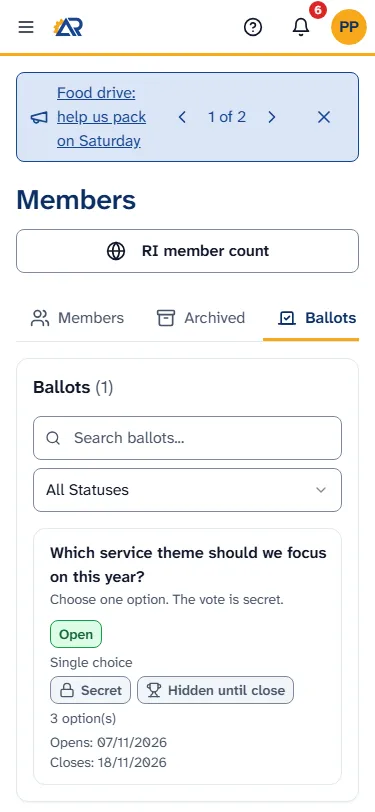
A ballot that is only a draft is not shown to you. The app does not send you a notice when a club ballot opens, so look at this tab when an officer says that voting has started.
How to vote
Section titled “How to vote”- On the ballot page, stay on the tab Voting. The card Your vote lists the options.
- Choose, according to the kind of ballot:
- Single choice: tap one option. It gets a frame and a check mark.
- Multiple Choice: tick the options you want. If the club set a limit, a line above them says how many you may choose, for example “Select up to 2 option(s)”. At the limit, the other options cannot be ticked.
- Ranked Choice: for each option you want, tap Add to ranking, in order from your first choice to your last. A number shows its place. To move an option, tap the up arrow or the down arrow next to it. To take an option out, tap Remove.
- Tap Submit Vote. If you chose nothing, a line says “Choose an option first.” If you chose too few or too many, a line says how many to choose, for example “Choose up to 2 option(s).”
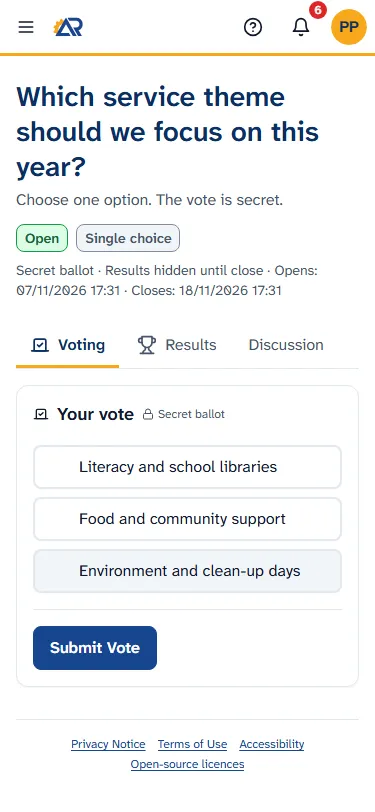
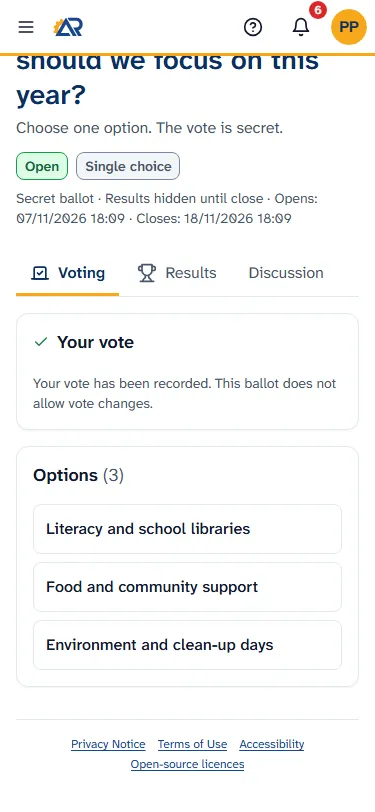
After you vote, the card Your vote has a green check mark. On a ballot that does not allow changes, it says “Your vote has been recorded. This ballot does not allow vote changes.” You cannot vote again.
On a ballot that allows changes, the button changes to Update Vote, and the button Remove Vote appears. The line “You have voted. You can change your vote while the ballot is open.” tells you that. Change your choice and tap Update Vote, or tap Remove Vote to take your vote back.
Voting ends at the time written after Closes, or when an officer closes the ballot. After that, the card Voting says “Voting has closed for this ballot.” If you voted, it also says “You cast a vote before voting closed.” If an officer cancels the ballot, the card says “This ballot has been cancelled.”
Secret and open ballots
Section titled “Secret and open ballots”Under the title, a line says Secret ballot or Open ballot.
- On a secret ballot, your choice is stored with a code instead of your name. The code only stops anyone from voting twice. The app does not show anyone how you voted.
- On an open ballot, the app records your vote with your name.
The tab Results shows numbers, never names. For more, see Your data and privacy.
Results
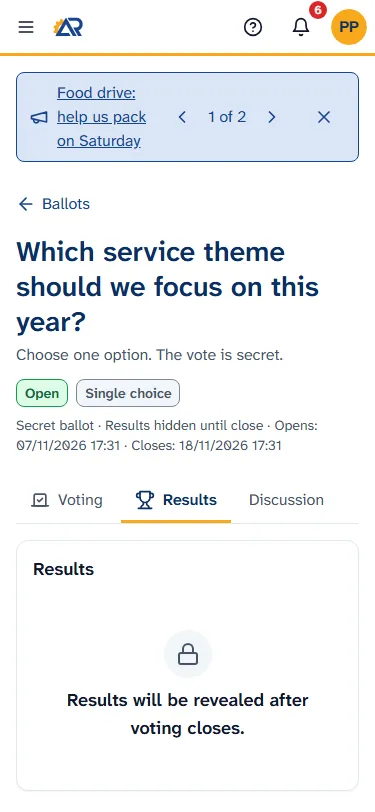
Section titled “Results”Tap the tab Results. If the line under the title says Results hidden until close, the tab says “Results will be revealed after voting closes.” until the ballot is closed or cancelled. After that, you see how many votes each option got, the Turnout and, if the club asked for a minimum, whether the quorum was met. A closed ballot marks the option in front with Winner. If the line is not there, the tab already shows the count while voting is open, and Currently leading marks the option in front. Officers with Governance: View see the results of a club ballot even while they are hidden.
On a Ranked Choice ballot, the tab shows Current leader (IRV), or Winner (IRV) when the ballot is closed, and the list Instant Runoff Voting Rounds, round by round. It does not show a count for each option.
Proxies: giving your vote to another member
Section titled “Proxies: giving your vote to another member”This is possible only when the line under the title says Proxy votes allowed. A proxy means that another member votes for you, because you cannot attend. You can ask for one as soon as the ballot is published, before voting opens. Then the card Voting says “Voting has not started yet. You can still arrange a proxy.”
To give your proxy:
- Open the ballot. Under the tab Voting, the card Proxies says “Can’t attend? Give your vote to another member.” It shows only if you can vote on this ballot, you have not voted yet, and you are not in a proxy already.
- Tap Choose a member and pick a member. The list has only members who can vote on this ballot and are not in a proxy.
- Tap Ask for proxy. The card says “Waiting for approval”, and the member you picked gets a notice in the bell.
- An officer with Governance: Edit has to approve it. You get a notice in the bell when that happens. The card then says “Approved”, with the name of the member who votes for you.
If the officer does not approve it, or the member declines, you get a notice in the bell: “Your proxy vote was rejected” or “Your proxy vote was declined”. The card goes back to Choose a member. Pick someone else, or vote yourself.
While you have given a proxy, you do not get your own Your vote form: the card says what is going on. To take it back, tap Cancel request (before approval) or Take back my vote (after approval). You can do this until the other member has voted for you.
If another member gave you their proxy:
- The card Proxies says “asked you to vote for them. An officer must approve it first.” until an officer approves it. You can tap Decline.
- You get no notice when the officer approves. Open the ballot again: the card says “Approved: you vote for” and the name.
- When voting is open, a second card appears, called “Voting on behalf of” and the name of the member. It works like Your vote. You vote there for the other member, and in Your vote for yourself.
- You can tap Decline until you have voted for them.
Comments
Section titled “Comments”The tab Discussion is where members write about the ballot. Write in the box. If it is an objection, tick Mark as formal objection, then tap Post. You can delete your own comment.
Admission ballots
Section titled “Admission ballots”A ballot called “Admission of” and a name is about a person who applied to join the club. It is always secret. When it opens, the members who can vote get a notice in the bell: “A new admission ballot is open”. Tap the notice to open the ballot. You vote the same way as in any other ballot. A card Candidate is on the page.
- Everyone who can open the ballot sees a card Voted, for example “5 of 12 members who can vote have voted.” Officers with Onboarding: View or Governance: View see a card Who voted with the names. Nobody sees how anyone voted.
- Nobody sees the count before the ballot closes. After that, the tab Results has no Turnout and no Winner line.
- The club can turn the discussion off. Then the tab Discussion is not there. If the candidate is not admitted, the comments are deleted with their data.
Common problems
Section titled “Common problems”- I do not see the ballot. It may still be a draft. It may be a board ballot, and you hold no seat on the board. Ask an officer.
- “Honorary members do not vote.” Honorary members cannot vote.
- “Only board members vote on this ballot.” The ballot is for the board.
- “You cannot vote on this ballot.” The club does not count you as an Active member for this Rotary year. Ask the club secretary.
- “Voting has not started yet.” The ballot is published, but not open. Come back when it opens. If proxies are allowed and you can vote, you can already use the card Proxies.
- “This ballot is not available.” The ballot does not exist, or you are not allowed to see it.
- I voted by mistake. On a ballot that allows changes, tap Update Vote. On a ballot that does not, you cannot change it, and the app gives officers no way to change a vote either.
- I do not see the card Proxies. The club did not allow proxies on this ballot. Or you cannot vote on it, you have already voted, or the ballot is no longer open.
- “No members are available as proxy holders.” No other member can hold your proxy right now. Ask an officer.