

Manage your account
My account is the page for your own login: your name and photo, your login email, your password, and your settings. It has three tabs: Account, Security and Preferences.
Who can do this: everyone who is signed in, for their own account.
To open it, tap your initials or photo at the top right, then My account.
How to change your name and photo
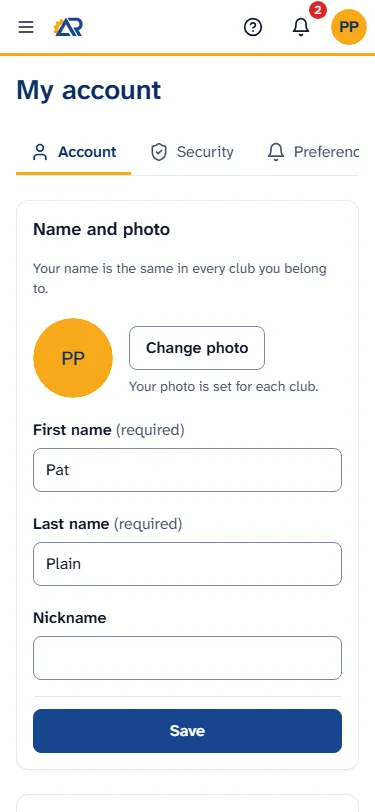
Section titled “How to change your name and photo”- Open the Account tab. The first card is Name and photo.
- To change your photo, tap Change photo and pick a picture from your phone. The page says “Profile picture updated successfully” when it is done.
- To take your photo away, tap Remove photo. This button shows only when you have a photo. RotarApp asks Remove your photo? and tells you your initials show instead and the photo file is deleted. Tap Remove photo to confirm.
- To change your name, edit First name, Last name or Nickname. The first two are required.
- Tap Save. The page says “Profile saved”.
Your name is the same in every club you belong to. Your photo is set for each club: the photo you choose belongs to the club you are in now.
How to change your login email
Section titled “How to change your login email”Your login email is the address you sign in with. Your club cards use it too.
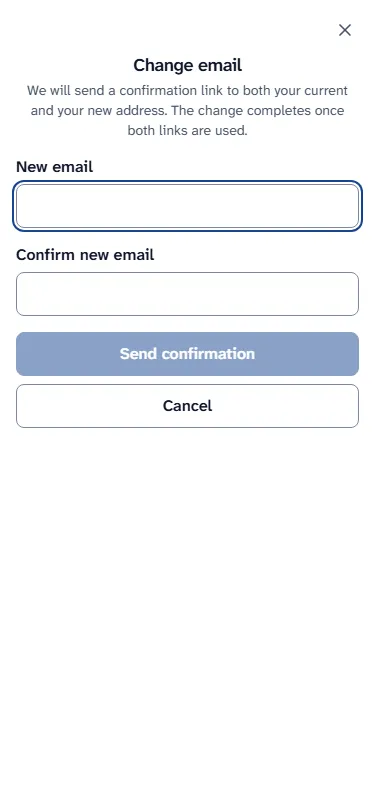
- On the Account tab, go to the card Login email and tap Change email.
- Type the new address in New email, and again in Confirm new email.
- Tap Send confirmation. RotarApp sends a confirmation link to your current address and to the new one. The page says “Check both inboxes to confirm the change.” The change is complete when you have used both links.
- Until then, the card shows “Waiting for confirmation:” and the new address.
How to change your password
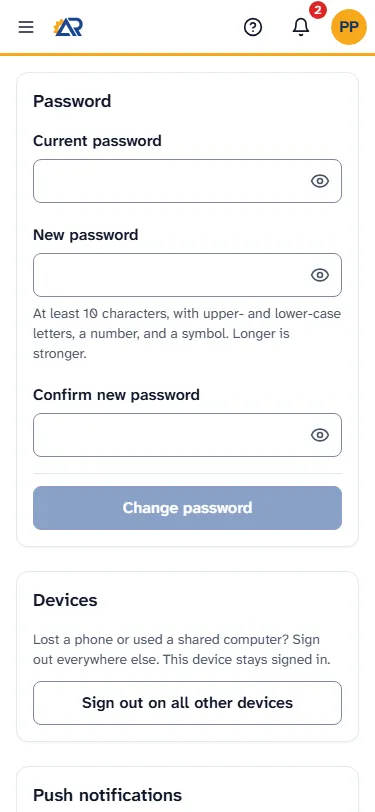
Section titled “How to change your password”- Open the Security tab and go to the card Password.
- Type your present password in Current password.
- Type the new one in New password and again in Confirm new password. The rules are under the field: at least 10 characters, with upper- and lower-case letters, a number and a symbol.
- Tap Change password. The page says “Password changed”. RotarApp also signs you out on your other devices.
If you forgot your current password, sign out and use Forgot password? on the sign-in page instead. See Sign in for the first time.
What else is on the Security tab
Section titled “What else is on the Security tab”- Two-factor authentication: see Two-step login.
- Sign-in reminders: appear only if you do not have two-step login. See Two-step login.
- Devices: tap Sign out on all other devices if you lost a phone or used a shared computer. RotarApp asks first, and says that this device stays signed in. Tap Sign out other devices to confirm.
- Push notifications: see Put RotarApp on your phone.
How to choose your settings
Section titled “How to choose your settings”Open the Preferences tab.
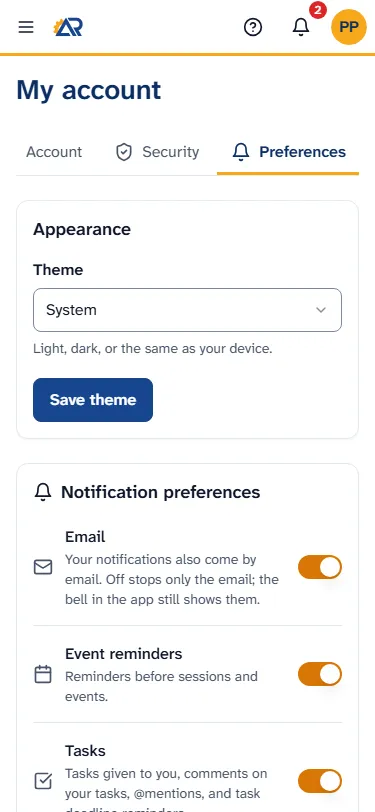
- Appearance: choose a Theme: Light, Dark or System (the same as your device). Tap Save theme. The theme changes only after you tap Save theme.
- Notification preferences: one switch for each kind of notice: Email, Event reminders, Tasks, Project updates and Dues reminders. A switch saves as soon as you tap it. The switch Email stops only the email: the bell in the app still shows the notice. Two more kinds, Membership updates and Year transition alerts, are not shown, because nothing sends those notices yet.
- Default club: shows only if you belong to more than one club. It is the club you land in when you sign in.
- Celebrations: the switch Show confetti turns on or off the confetti when a project reaches a goal milestone.
- RotarApp news: a switch for news and tips from RotarApp. You can change your mind here at any time. RotarApp sends you security and service notices about your account either way.
Common problems
Section titled “Common problems”- “You have no member card in this club, so your name and photo cannot be changed here.” Your login is not linked to a member card in the club you are in. Ask an officer.
- “That file is too large.” or “That file type is not allowed.” Choose a smaller picture, in a common picture format.
- “Could not save your photo.” The picture did not reach RotarApp. Check your connection and try again with Change photo.
- “Nothing was saved. Try again.” The change did not reach RotarApp. Check your connection and try again.
- “Your current password is not correct.” Retype it with the eye button open. Or sign out and use Forgot password?.
- “The new password must be different from the current one.” You typed your present password as the new one. Choose a different password.
- “Passwords do not match” The new password and Confirm new password are not the same. Type both again.
- “This password is too easy to guess. Choose another one.” Choose a longer password that is not a common word or a name.
- “Sign in again to change this.” RotarApp needs a fresh sign-in before it changes this. Tap Sign in again, sign in, and repeat the change.
- The address is not valid, the two emails do not match, or the address is already used. RotarApp says “Enter a valid email address.”, “The two addresses do not match.” or “This address is already used by another member.” Fix the address and tap Send confirmation again.
- “That is already your email address.” You typed the address you already use to sign in. Type the new one.
- “The email change could not be completed. The address may already be in use.” You tapped a confirmation link, and the change did not go through. Start again with Change email, and use an address that no one else in RotarApp uses.
- I cannot find a language setting. There is none here. Your club chooses one language for everyone in the club.