

See club events and your attendance
The Events page is your club’s calendar: weekly meetings, special events and, if you want them, the dated tasks of your projects. Your attendance at meetings is shown on your own member card.
Who can do this: every member can see the calendar and their own attendance. Adding or changing events needs Projects & Events: Edit. Recording who came to a meeting needs Members: Edit.
How to find an event
Section titled “How to find an event”- Open Events in the menu. On a phone, tap the menu button at the top left first.
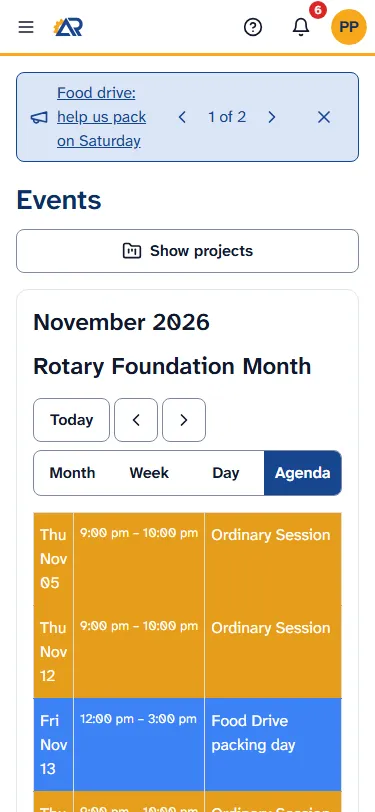
- The calendar opens on the present month, with the Rotary theme of that month next to the month name. On a phone it opens as a list of the month’s events (Agenda). On a computer it opens as a grid (Month).
- To move around, tap Today, or tap the two arrows next to it. The arrows go back or forward by one month in Month and Agenda, by one week in Week, and by one day in Day.
- To change how the calendar looks, tap Month, Week, Day or Agenda. Agenda shows one month as a list, with the date, the time and the title of each event.
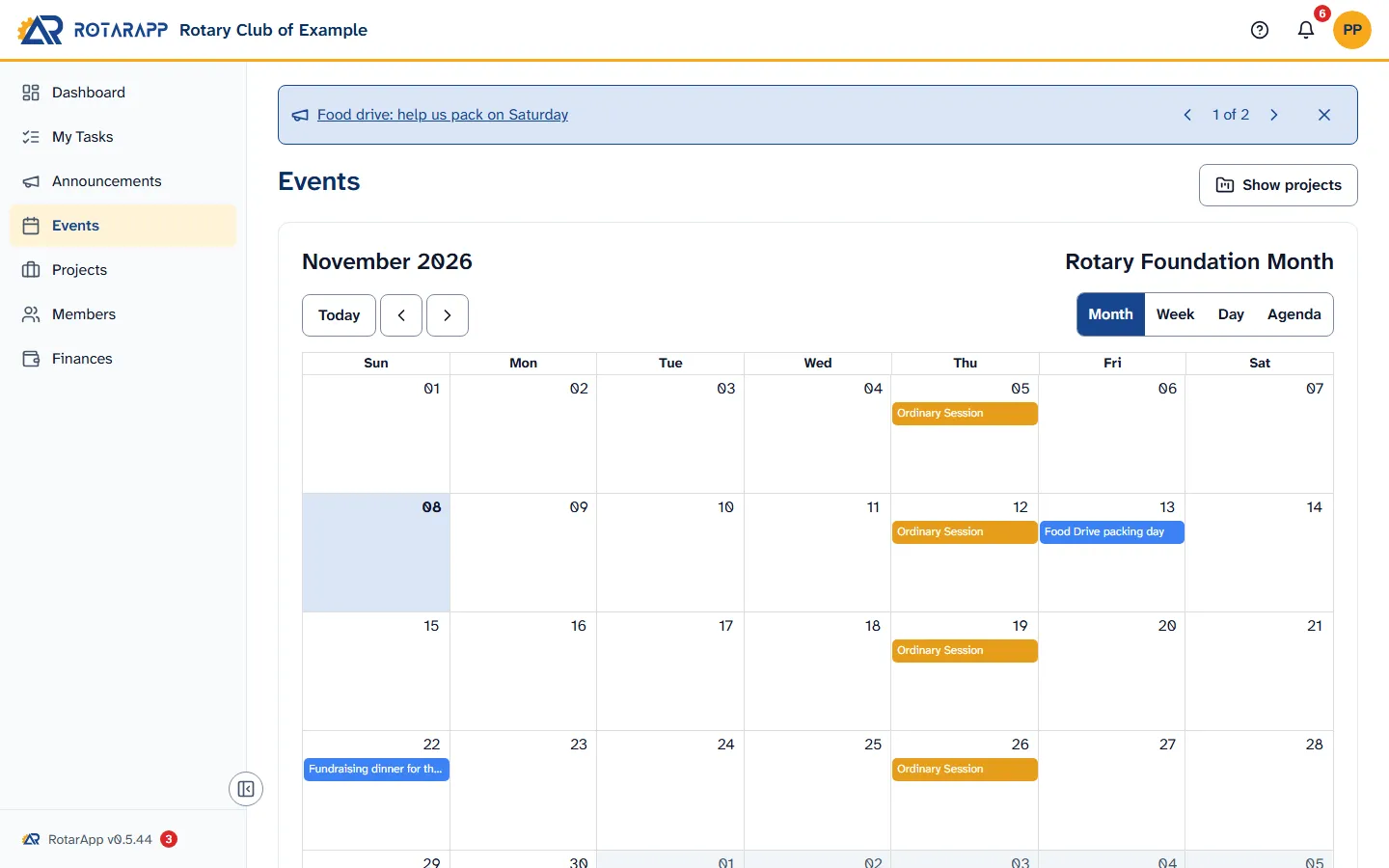
Under the calendar, Colours tells you what the colours of the birthdays and wedding anniversaries mean. The calendar shows only the birthdays and anniversaries of Active and Honorary members.
How to see the time and place of an event
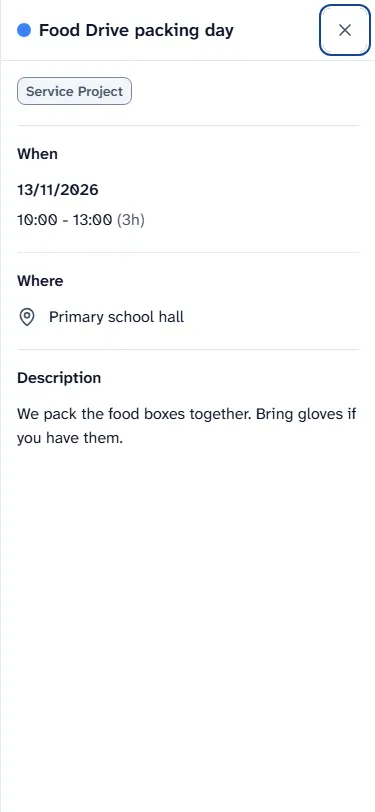
Section titled “How to see the time and place of an event”- Tap the event on the calendar. A panel opens with the name of the event at the top.
- Read When (date and time), Where (tap View on map if there is a map link), and Description. If the meeting is online, the panel shows Online Meeting and a button Join meeting.
- If the event has roles for members, the panel lists them under Responsibilities. If it has tasks linked to it that you may see, they are under Tasks.
- Tap the X at the top right to close the panel.
A few things you may see:
- Cancelled in red: the club cancelled that meeting. It stays on the calendar, crossed out. It does not count for attendance, and it has no reminders.
- Recurring: the event repeats on a pattern, for example every week. When the event repeats on a pattern, the panel says how often.
- A lock with Officers only: the event is only for officers and the people it is assigned to.
To see a birthday or an anniversary, tap it on the calendar. A small window shows the member’s name and the date, and for an anniversary the years married. View member profile opens the member’s card. Close closes the window.
How to see your project tasks on the calendar
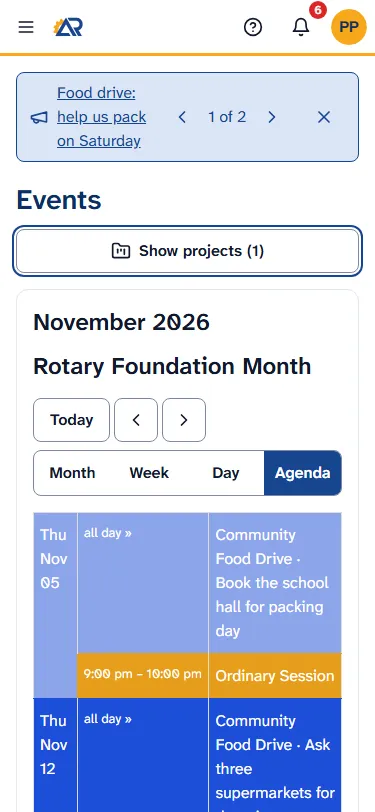
Section titled “How to see your project tasks on the calendar”- Tap Show projects.
- Tick the projects you want. The list holds the open projects you may see. If there are none, it says “No open projects”.
- The dated tasks of those projects appear on the calendar, with the project name before the task name. The button then says, for example, Show projects (1). Tap a task to open its project.
The ticks are saved in this browser only. On another phone or computer you tick them again.
How to answer “Will you attend?”
Section titled “How to answer “Will you attend?””You answer from the message the club sent you, or from the email, not from the calendar. See Read announcements and required notices.
How to see your attendance
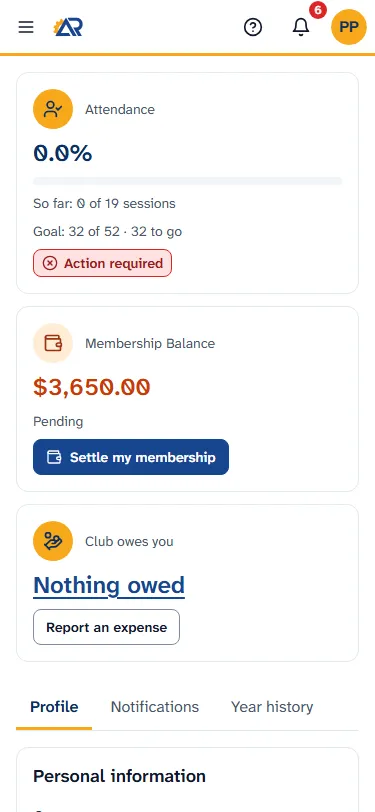
Section titled “How to see your attendance”- Tap your initials or photo at the top right, then View Profile.
- The first card is Attendance. It shows:
- a percentage, for the meetings held so far this Rotary year;
- So far, for example “So far: 12 of 14 sessions”: the number of meetings you attended, out of the meetings held so far;
- Goal: the number of meetings you need to attend out of all the meetings of the year, and how many are still to go;
- a label: No sessions yet, Action required (you are below the percentage the club asks for), On track, Goal reached, or Goal out of reach (even if you attend every meeting that is left, you would not reach it).
- To see earlier years, tap the tab Year history, then tap a year. Under Participation Summary, Attendance Progress shows your sessions, the percentage Required by the club, and whether you meet it.
How the number is worked out:
- A meeting counts as attended when an officer marks you Present or Make-up. For a make-up, the officer writes the location.
- A meeting where you are marked Excused is taken out of the count, so it does not lower your percentage.
- The percentage is the meetings attended, make-ups included, divided by the meetings held so far, without the excused ones. The same rule gives the goal, for the whole year.
- A cancelled meeting does not count.
- Only the kinds of meeting the club counts are in the percentage. In Year history they are marked Counts for %, for example Ordinary & Assembly Sessions. Other events are on the calendar but are not in the percentage.
- If you joined during the year, your count starts on the date an officer set for you. Year history shows it as “Counts from” and the date.
- Honorary members can only be marked Present or Absent.
You cannot mark your own attendance. After a meeting, an officer with Members: Edit opens the meeting and taps Record attendance.
Common problems
Section titled “Common problems”- My attendance is 0 but I was at the meeting. An officer has not recorded the meeting yet, or marked you wrongly. Ask your club secretary.
- I cannot find an event. Agenda and Month show one month: use the arrows to go to another month. An event for officers only is not on your calendar.
- I cannot answer “Will you attend?” on the calendar. The question is in the message and in the email, not in the event panel.
- The calendar says “We could not load the events.” Check your connection and tap Try again.
- I do not see View Profile in the menu. Your login is not linked to a member card yet. Ask your club secretary.