

See your dues and money
RotarApp keeps your membership dues and the money your club owes you on your own member card. You see only your own dues, never those of other members. The page Finances shows the club’s totals.
Who can do this: every member, for their own money. The lists of everybody’s dues and the club’s books are for officers with Finance: View.
How to see your dues
Section titled “How to see your dues”- Tap your initials or photo at the top right, then View Profile.
- The card Membership Balance shows the amount you owe for this Rotary year, and a word that says where you stand:
- Pending: you owe the dues and have paid nothing yet.
- Partial: you paid part of the dues.
- Paid: you owe nothing.
- Overpaid: you paid more than you owe. The amount is your credit.
- Exempt or No Dues Set: the club asks nothing of you this year.
- Moved to a later year: the club moved the amount to a later year.
- For the detail, tap the tab Year history, then tap the year. Payment Summary shows Total Fee, Paid and Balance. Payment History lists the payments, with the date and the amount. If you owed money, or had a credit, from an earlier year, a line says so.
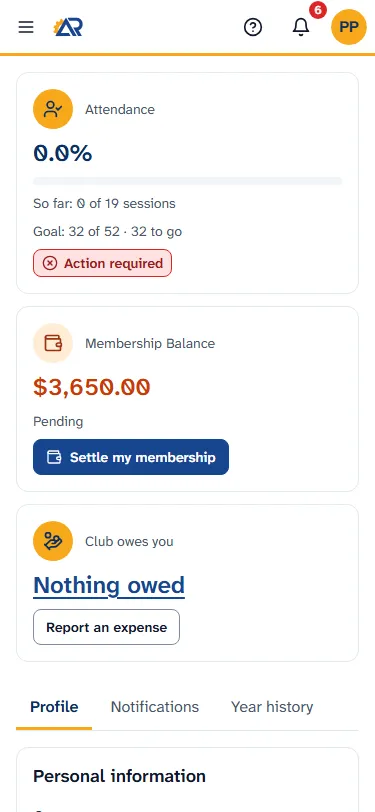
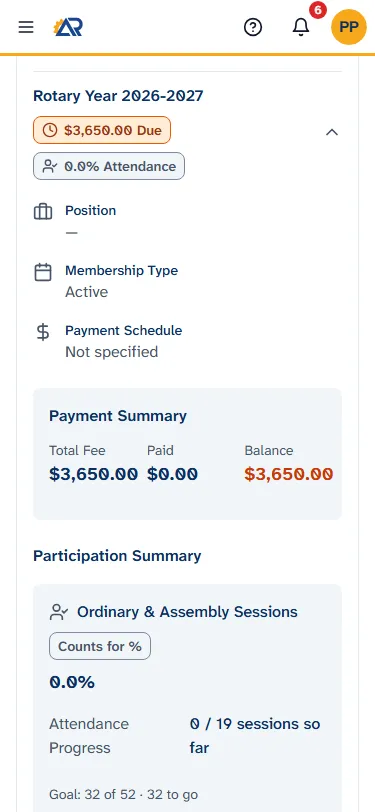
Honorary members have no Membership Balance card.
How to pay your dues
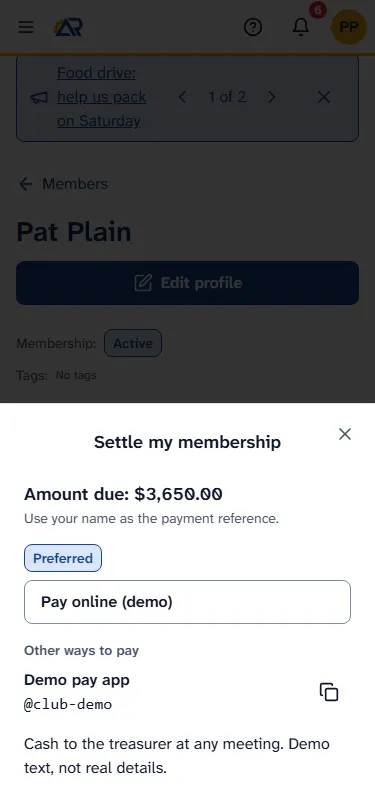
Section titled “How to pay your dues”If your club has added its ways to pay, the card Membership Balance has a button Settle my membership. The same button is on your Dashboard. If you do not see the button, your club has not added them yet. Ask your treasurer.
- Tap Settle my membership. A window opens. If you owe money, it shows “Amount due:” with the amount and the line “Use your name as the payment reference.” If you owe nothing, the button is still there, and the window shows the ways to pay without an amount.
- Read the ways to pay. The one the club prefers comes first, marked Preferred. Other ways are under Other ways to pay. A way can be bank details, a link to a payment page (a button that opens it), the name of a payment app, or a text, for example to pay cash to the treasurer.
- Next to an account number or the name of a payment app, tap the copy button, a small icon. It turns into a tick, and a screen reader says Copied. When the club has given bank details, the wide button Copy all bank details copies everything at once, and its words change to Copied.
- Pay with your bank or payment app. RotarApp does not take the payment. The treasurer records it, and then your balance changes.
How to see what the club owes you
Section titled “How to see what the club owes you”The card Club owes you shows Nothing owed, or an amount.
- Tap Nothing owed or the amount. A window called What the club owes you opens.
- Each line shows what it was for and its state: Waiting for review, Sent back, Open (the club owes it) or Repaid. A line that is Open or Repaid also shows the Amount and Still owed. When the club has paid part of it, the payments are listed under the line, as Bank transfer or Dues credit. A dues credit means the club took that amount off your dues.
- If there is nothing, the window says “The club owes you nothing right now.”
How to report an expense
Section titled “How to report an expense”Use this when you paid something for the club from your own pocket and you want the club to pay you back. You need the receipt.
- On your member card, tap Report an expense. The same button is inside the window What the club owes you.
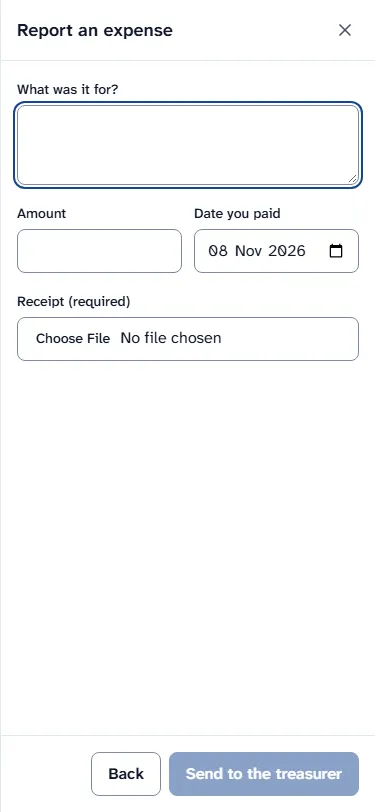
- Write what it was for in What was it for?
- Type the Amount.
- Choose the Date you paid. It cannot be a date in the future.
- Under Receipt (required), tap the file box and pick a photo or a file of the receipt. JPG, PNG, WEBP, HEIC and PDF files are accepted, up to 10 MB.
- Tap Send to the treasurer. A message says “Expense claim sent to the treasurer”. The claim is Waiting for review. Tap Back if you want to leave without sending.
The treasurer accepts the claim, or sends it back. If the claim is sent back, it shows Sent back and the Reason. To correct it, report the expense again. You can tap Withdraw on a claim that is Sent back, or one that is still Waiting for review, to take it off your list. A message says “Claim withdrawn”.
What you see of the club’s finances
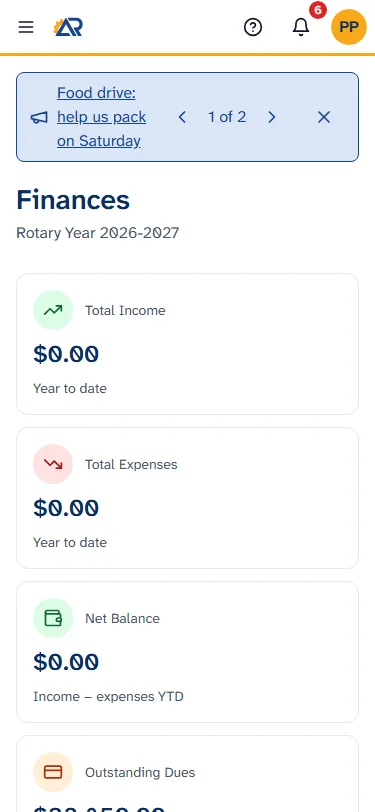
Section titled “What you see of the club’s finances”Open Finances in the menu. Every member sees the page Overview for the present Rotary year. It shows the club’s totals, not people or payments: Total Income, Total Expenses, Net Balance, Outstanding Dues, Membership Fees Collected, Total Assessed and Collection Rate. Details such as the books, the dues of each member and the budget are for officers with Finance: View.
Dues reminders
Section titled “Dues reminders”RotarApp can remind you when dues are due. Choose how in the card Notification preferences: see Manage your account.
Common problems
Section titled “Common problems”- I do not see Membership Balance. Honorary members do not have it.
- The balance says No Dues Set. The club has not set the dues for this year. Ask your treasurer.
- I paid, but the balance did not change. The treasurer records payments by hand. Ask your treasurer.
- I do not see Settle my membership. The club has not added its ways to pay yet. Ask your treasurer.
- “Only JPG, PNG, WEBP, HEIC and PDF files are allowed” or “File size must be less than 10 MB”. Choose another file for the receipt: a photo of it, or a PDF under 10 MB.
- The button Send to the treasurer is grey. All four things are needed: what it was for, an amount above 0, the date, and a receipt.
- I cannot see other members’ dues. That is on purpose. Only officers with Finance: View see the dues of the whole club.