

Put RotarApp on your phone
RotarApp is a web app, so there is no app store. You can add it to your phone’s home screen, and it then opens like any other app. You can also turn on push messages, so your notifications reach your phone even when RotarApp is closed.
Who can do this: every member, on their own phone.
How to add RotarApp to an iPhone
Section titled “How to add RotarApp to an iPhone”- Open RotarApp in Safari, and sign in.
- Tap the Share button.
- Choose Add to Home Screen, then tap Add.
- Open RotarApp from the new icon on your home screen. You may need to sign in again there. On an iPhone, push messages work only when you open RotarApp from that icon, and they need iOS 16.4 or later.
How to add RotarApp to an Android phone
Section titled “How to add RotarApp to an Android phone”- Open RotarApp in Chrome, and sign in.
- Tap the menu button (three dots) at the top right.
- Choose Install app. Some phones show Add to Home screen instead.
- Confirm. Open RotarApp from the new icon. You may need to sign in again there.
Your phone’s menus use their own words, and they differ a little between phone makers and system languages.
How to turn push messages on
Section titled “How to turn push messages on”- Open RotarApp from your home screen icon. Tap your initials or photo, then My account.
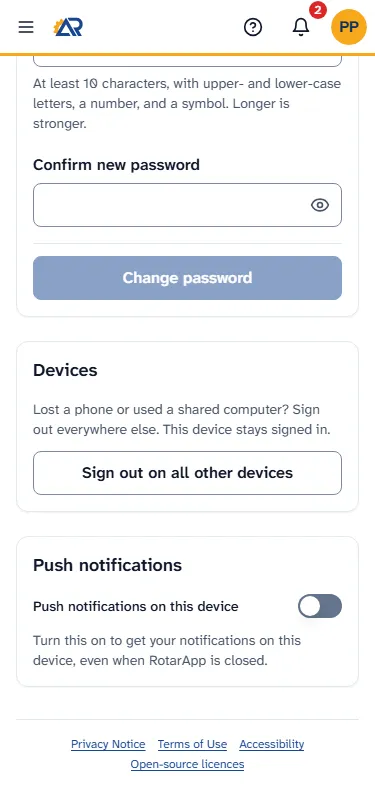
- Tap the Security tab and find the card Push notifications.
- Tap the switch Push notifications on this device.
- Your phone asks if RotarApp may send notifications. Tap Allow.
- The card now says “Your notifications also appear on this device.”
A shortcut: when push messages are off, the list under the bell starts with Get these on your phone. and a button Turn on. If you close that line by tapping the X, it comes back after 3 days.
How to turn push messages off
Section titled “How to turn push messages off”- Go to My account, Security, Push notifications.
- Tap the switch Push notifications on this device to turn it off.
The switch works for one device at a time. If you use RotarApp on two phones, turn it on or off on each one. When you sign out on a device, RotarApp stops push messages to it.
Common problems
Section titled “Common problems”- The card Push notifications is not there. Your phone or browser cannot receive push messages from RotarApp. On an iPhone, check that it has iOS 16.4 or later.
- The card says “On iPhone, first add RotarApp to your Home Screen”. You opened RotarApp in Safari, not from the home screen icon. Add it to your home screen as above, open it from the icon, and try again.
- The card says “Notifications are blocked for RotarApp in this browser.” You said no to notifications earlier. Allow them in your browser’s site settings for RotarApp, then come back to this card.
- The switch is grey and I cannot tap it. Wait a moment while it saves. If it stays grey, one of the two messages above is showing under it.
- I want fewer notices. Open the card Notification preferences in Manage your account. Each switch stops one kind of notice. The switch Email stops only the email: the bell in the app still shows the notice.